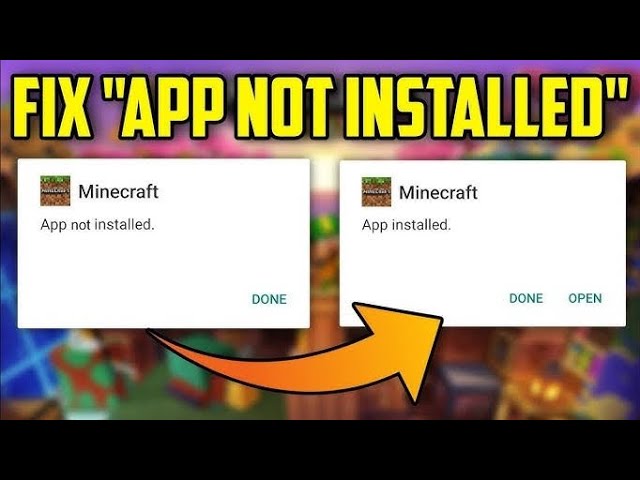
The “App Not Installed” error is one of the most common issues faced by users when installing Minecraft APK on Android devices.
This error can be frustrating, especially when you’re excited to start playing. In this guide, we’ll explain why it happens and how to fix it step by step.
Why This Error Happens
There are several reasons why Android may fail to install an APK file:
1. Corrupted APK File
The downloaded file may be incomplete or damaged.
2. Storage Issues
Your device may not have enough space.
3. Version Conflict
An older or different version of Minecraft may already be installed.
4. Security Restrictions
Android blocks unknown installations by default.
Step-by-Step Fixes
✅ Fix 1: Check Storage Space
Ensure you have at least 1–2 GB of free space.
✅ Fix 2: Enable Unknown Sources
Go to:
Settings → Security → Install Unknown Apps → Enable
✅ Fix 3: Remove Old Version
Uninstall any existing version of Minecraft before installing a new one.
✅ Fix 4: Re-download APK
Download the file again from a reliable source.
✅ Fix 5: Clear Cache
Go to:
Settings → Apps → Package Installer → Clear Cache
Advanced Fixes
- Restart your device
- Disable Play Protect temporarily
- Check Android version compatibility
Prevention Tips
- Always download complete files
- Avoid modified APKs
- Keep your device updated
Conclusion
The “App Not Installed” error is usually easy to fix if you follow the correct steps. By ensuring compatibility and using trusted sources, you can avoid this issue completely.